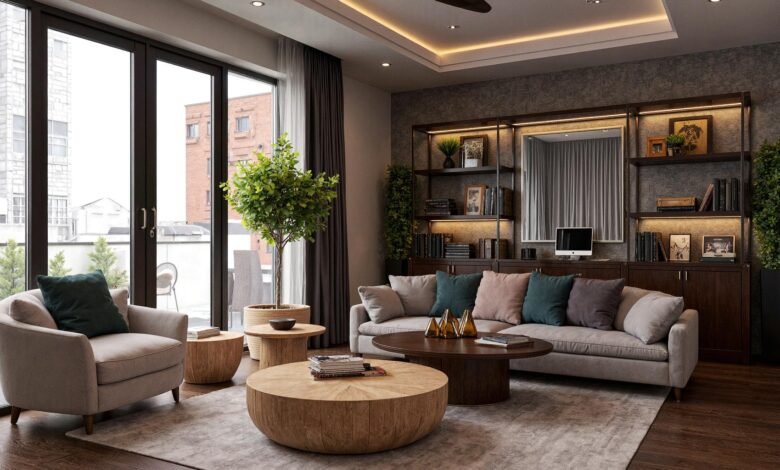
Architects and interior designers have started using AI as a practical visualization layer in the workflow, not just for inspiration. It helps them test options earlier, iterate faster, and show clients believable interiors and exteriors without waiting on heavy render setups.
The challenge is consistency. If the goal is vague, the input is messy, or constraints are missing, the model fills the gaps and results start drifting in geometry, scale, lighting, and textures.
Photoreal AI rendering becomes reliable when you remove uncertainty step by step. The workflow below shows how to do that with photos, sketches, floor plans, and 3D model screenshots, using the same logic across interior and exterior work.
Step 1: Define The Target Output
Photoreal means different things depending on the job. A listing image needs trust and realism, while a concept image can be more expressive if it stays coherent. Set the target first so every decision after this becomes simple.
Core Decisions
- Write one sentence that defines the purpose and the realism bar.
- Choose one camera feel and keep it consistent across all iterations.
- List the non-negotiables in plain language so the model knows what must not change.
- List what is allowed to change and keep that list short.
Example Target Statements
- Create a real estate interior that looks like a natural camera photo and does not change the room shape.
- Create an exterior facade study that keeps massing and openings unchanged and focuses only on materials and lighting.
Step 2: Choose The Right Input Type
The input decides how much structure the model can realistically preserve. Strong perspective cues and clear edges make photoreal results easier and faster. Pick the input that matches your tolerance for change.
How To Choose
- Use a photo when natural lighting and credibility are the priority.
- Use an empty room photo when the job is interior staging and quick style options.
- Use a 3D model screenshot when geometry fidelity is critical.
- Use a sketch when you want direction and atmosphere more than strict accuracy.
- Use a floor plan when you need fast layout visualization and can enforce constraints.
Quick Match Guide
- Validate an exterior facade direction with a clean 3D screenshot.
- Sell the mood of an interior with a well shot photo.
- Explore early style directions with a sketch before committing to realism.
Step 3: Prepare The Input For Photoreal Output
Most unrealistic outputs come from messy cues in the input. Models follow edges, contrast, perspective lines, and light gradients. Clean inputs lead to cleaner geometry, better textures, and more believable lighting.
Prep Checklist
- Straighten verticals so walls and facade edges do not lean.
- Fix exposure so windows are not blown out and shadows are not crushed.
- Use the sharpest and highest resolution file available to preserve texture cues.
- Remove overlays such as UI elements, logos, and watermark text.
- Crop so boundaries remain visible and the model can understand the space.
Cropping Rules
- Keep floor edges, ceiling lines, and window frames visible for interiors.
- Keep roof edges, building corners, and ground contact visible for exteriors.
- Never crop away geometry reference points if the goal is to keep model geometry stable.
Step 4: Select A Constraint Level Before You Generate
The same prompt behaves differently depending on how much freedom the generation mode allows. Photoreal workflows work best when freedom matches your constraint level. If accuracy matters, reduce creativity.
Mode Selection
- Choose an image guided approach when camera and composition must stay stable.
- Choose an accuracy focused approach when proportions and structure must stay intact.
- Choose a targeted edit approach when only part of the scene should change.
- Choose a freer style approach only when exploration matters more than fidelity.
Simple Rule
- If the layout must remain unchanged, treat the input as truth and the prompt as styling guidance.
Step 5: Write A Photoreal Prompt That Acts Like A Brief
Photoreal prompts work best when they read like a rendering brief. Keep it tight and specific so the model does not invent details. Focus on space type, key materials, lighting logic, camera feel, and geometry constraints.
Prompt Structure
- Name the space type and intent clearly so the model does not guess the category.
- Choose a small set of key materials and avoid listing everything in the room.
- Define lighting direction and softness so shadows match openings and sky conditions.
- Define camera feel once and keep it unchanged across iterations.
- Add realism cues such as realistic texture scale, true to life exposure, and natural reflections.
- Repeat geometry constraints in plain language so structure stays stable.
Example Interior Prompt
Modern living room interior, warm neutral palette, oak floor, plaster white walls, natural daylight entering from left window, soft realistic shadows, eye level camera, wide interior lens feel, photorealistic, realistic texture scale, true to life exposure, keep model geometry and openings unchanged.
Example Exterior Prompt
Contemporary villa exterior, clean facade lines, white stone facade with warm wood accents, realistic glazing reflections, midday sun from right, consistent shadows, eye level camera, natural lens feel, photorealistic, keep roofline, openings, and proportions unchanged.
Step 6: Evaluate The First Output Like A Renderer
The first render is a diagnostic pass. Instead of asking whether it looks nice, check what broke and why. This avoids random iteration and makes improvements predictable.
What To Check First
- Check scale using human references such as doors, counters, chairs, and railings.
- Check contact shadows and grounding so objects do not look like they float.
- Check perspective consistency so corners do not bend and lines converge logically.
- Check lighting logic so window direction, sun direction, and cast shadows agree.
- Check texture clarity and texture scale so wood grain and fabric detail look real.
Quick Fix Example
- If the interior looks good but furniture feels slightly floating, strengthen contact shadow and occlusion instructions instead of changing style.
Step 7: Iterate with One Variable At A Time
Photoreal output usually needs a few controlled iterations. The fastest path is changing one variable per run so you know what caused improvement. This keeps the workflow calm and repeatable.
Iteration Order
- Lock geometry first and tighten constraints if structure drifts.
- Tune lighting second and adjust only lighting language.
- Tune materials third and keep the material list short.
- Tune styling last and increase decor density gradually.
- Generate variations only after a stable base render exists.
Example Iteration Sequence
- Run one locks geometry and camera feel.
- Run two refines daylight direction and shadow softness.
- Run three improves one dominant material and texture scale.
- Run four explores style variations while keeping everything else stable.
Step 8: Final Polish For Delivery Quality
A render is only useful if it is deliverable. Polish after realism checks pass so you do not upscale problems. Treat final output like a client deliverable and not a draft.
Delivery Checklist
- Upscale at the end, not in the middle. Upscaling early can amplify artifacts and make later fixes harder.
- Verify micro detail on key materials so fabrics, wood, stone, and facade finishes look natural.
- Keep contrast realistic and avoid an over processed look.
- Align white balance and light temperature so the scene feels coherent.
- Recheck geometry one last time so straight edges stay straight and openings stay consistent.
ArchiVinci: A Reliable Alternative for Photorealistic Renders
ArchiVinci is a cloud-based AI architecture generator that turns photos, sketches, and 3D model screenshots into photoreal architectural visuals, without requiring a local GPU setup. It is built for fast iteration and aims to preserve geometry and textures when you choose accuracy focused workflows.
Key Capabilities
- Generate photoreal interior and exterior renders from image based inputs.
- Explore multiple styles and variations quickly without rebuilding a traditional render setup.
- Use targeted edit modules to change parts of a room or facade instead of regenerating everything.
Accuracy and Texture Priorities
- Focus on precise textures and surface detail when inputs are clean and prompts are tight.
- Keep model geometry stable by stating constraints clearly and keeping edges and openings visible in the input.
Interior Rendering
AchiVinci supports photoreal interior visuals from photos, sketches, and 3D model screenshots. It fits workflows where realistic lighting and materials matter, but speed and iteration matter just as much.
Best For
- Client ready interior options across multiple styles.
- Fast concept to presentation workflows for interior designers.
Typical Modules
- AI Interior Design
- Furnish Room
- Modify Room
Exterior Rendering
ArchiVinci supports exterior rendering for facade studies and renovation visuals using image based inputs. It works best when massing stays consistent and you iterate materials and sun logic in small steps.
Best For
- Facade material exploration and fast exterior options.
- Before and after exterior style directions for renovation visuals.
Typical Modules
- AI Exterior Design
- Modify Architecture
Exact Render For Higher Accuracy
Exact Render is useful when the output should stay close to the source model look and geometry. It works best with clean 3D model screenshots and short prompts focused on lighting and materials.
Best For
- Interior and exterior renders where geometry drift is not acceptable.
Fast Renders with No GPU Required
ArchiVinci runs in the browser and does not require a local GPU setup. Speed is most useful when camera feel stays fixed and each run changes one variable such as lighting softness or a single facade material.